Unclear responsibility for access
One access for everyone opens too much; separate roles for service and stations fit the task better.
 BierblockDELogin
Waiters and stations sign in with their name and a PIN; owners and co-organisers use their own account. This flow shows how to create access, share the helper link safely, open the right view and rehearse a test order. You arrange the rota and shift planning separately: Bierblock shows orders and their processing status.
Work material
Use one row for each station or work area. Record open orders, questions and the device check. Create the shift plan with time windows and handover overlap in the free tool under Working aids; the app itself does not plan shifts.
Do not write PINs or passwords on this sheet. Share access only through the agreed secure method.
| Step or entry | Outgoing person | Incoming person | Open orders / prepared items | Questions | Device and access checked | Time |
|---|---|---|---|---|---|---|
Scroll horizontally to see the full table.
Entries are not saved. Print the completed sheet before reloading or record the details separately.
The Problem
The number of helpers is rarely the problem. Unclear access and a missing shared view at handover are.
One access for everyone opens too much; separate roles for service and stations fit the task better.
If both are posted in an open group, you can no longer tell who actually uses the access.
That is when you find out whether drink and food reach the right station – often too late.
The Solution
Before the festival, set up products, prices and stations. Then create one access for each waiter and each station. A station access belongs to exactly one station. The owner works with their own account; co-organisers are invited by email and sign in with their own account.
Waiters need a name and a PIN; stations also need their station assignment.
Copy the helper link or print the QR sheet. Tell the person the PIN separately – not in an open group.
Open the view with the helper and run an order with a drink and a food item before service starts.
Benefits at a glance
The fictional sample festival shows the order: create access, share the link, open the station view and run a test order. All visible names are test data; PINs are masked.
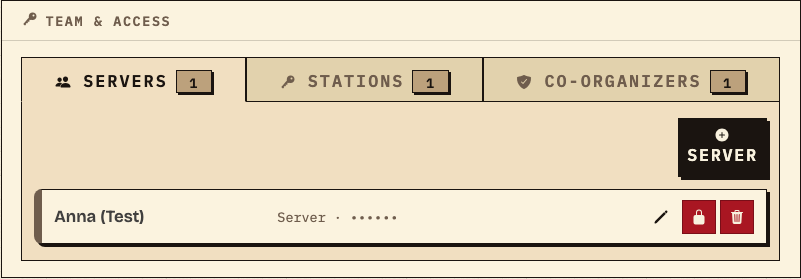
Under "Team & access" the sample has a waiter access "Anna (Test)"; the "Stations" tab counts one more access. A station access belongs to exactly one station. The PIN appears in the list only as dots; it is generated when the access is created. Co-organisers appear in their own tab and use their account instead of a PIN.
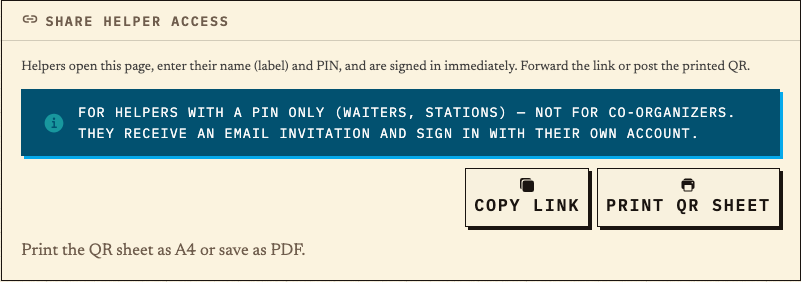
Use "Share helper access" to copy the link or print the QR sheet. Share the link and the PIN separately: for example, the link in the rota and the PIN directly with the person. That keeps track of who received the access. The helper opens the link, enters their name and PIN and lands in their view.
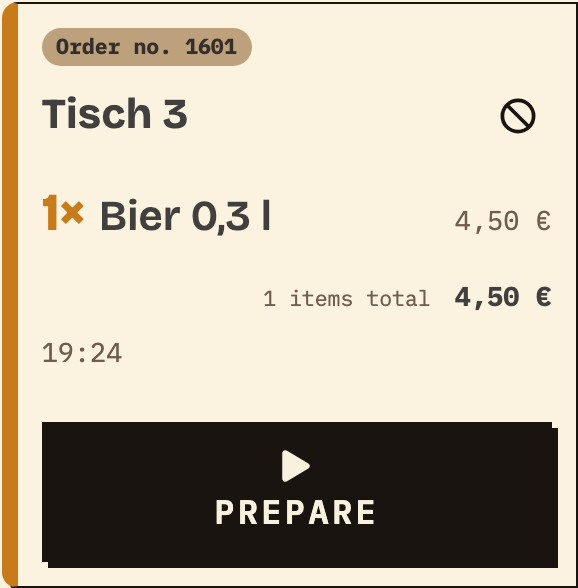
After signing in, waiters choose a table and create a test order. In the sample test run, the order reaches table 3 with a 0.3 l beer as a ticket at the Kellnertheke station. A station access sees only its own items and moves them to "In progress" and "Done". After sending, check that drink and food reach the right station. Only then should real service begin.
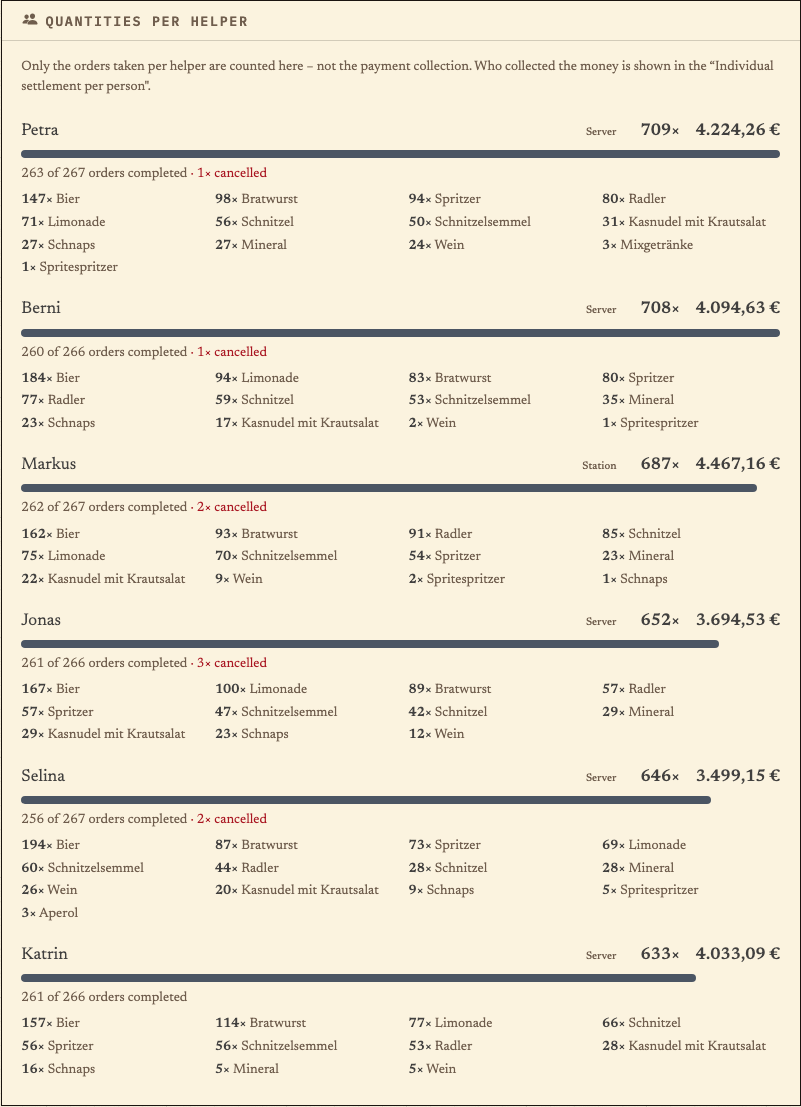
"Quantities per helper" counts the items each person recorded, not cash taken, service or working time. In the sample, Petra (waiter) leads with 709 units and €4,224.26, 263 of 267 orders completed and 1 cancelled, followed by Berni with 708 and Markus (station) with 687 units. Use the figures as a review of order entry, not as a performance rating.
All screenshots come from "Feuerwehrfest am Dorfplatz", a fictional sample festival in the real Bierblock app. Team & access shows test access with a masked PIN; the station ticket comes from a test order placed with the waiter access. The helper analytics counts recorded items; it does not prove service, payment or working time.
Frequently asked questions
Everything about setup, usage and costs.
Ready?
Open the public demo to explore order taking, the kitchen and the bar. No account is needed. To prepare your own setup, start a test event afterwards.
Start without an account. Register to save. Your own demo events allow up to 20 test orders.
See pricing