Pile of notes grows uncontrolled.
The more waiters active, the more notes arrive at the bar. The order is lost.
 BierblockDELogin
Which drink is still open, and which is being prepared? Bierblock shows your bar team the drink orders assigned to its station on screen. The team moves each item from Open to In progress and marks it ready; serving and payment stay separate steps. Helpers no longer carry slips to the bar. The devices need a connection for the shared view.
The Problem
Too many notes and shouts — and the order status has to be handed over verbally.
The more waiters active, the more notes arrive at the bar. The order is lost.
With music and bustle nobody hears anymore who needs what. Orders arrive too late.
Which drinks are still open? Without a shared status, the team has to ask or search through slips.
The Solution
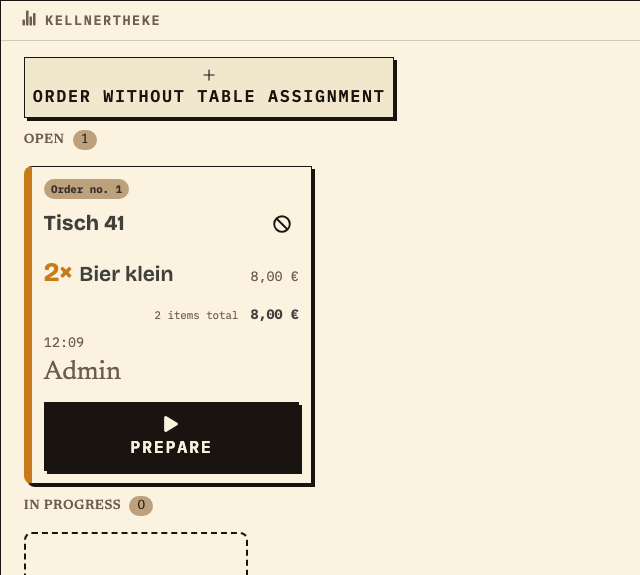
The bar sees only the drinks assigned to its station in the browser. An incoming round appears in the Open column; the team moves it to In progress and marks it ready. Drinks and food run through their own stations.
The station signs in with its configured station access and lands directly on the monitor. Only the items assigned to that station appear.
“Prepare” starts the work, “Mark ready” finishes preparation. The station status says nothing about collection or payment.
Open items are reviewed on the monitor and handed over to the next shift. There is no automatic takeover of open tasks.
The station opens its configured station access in the browser and lands directly on the monitor. It sees only the items assigned to that station. The round from table 41 sits in the Open column; the card shows the order number, table, items and total.
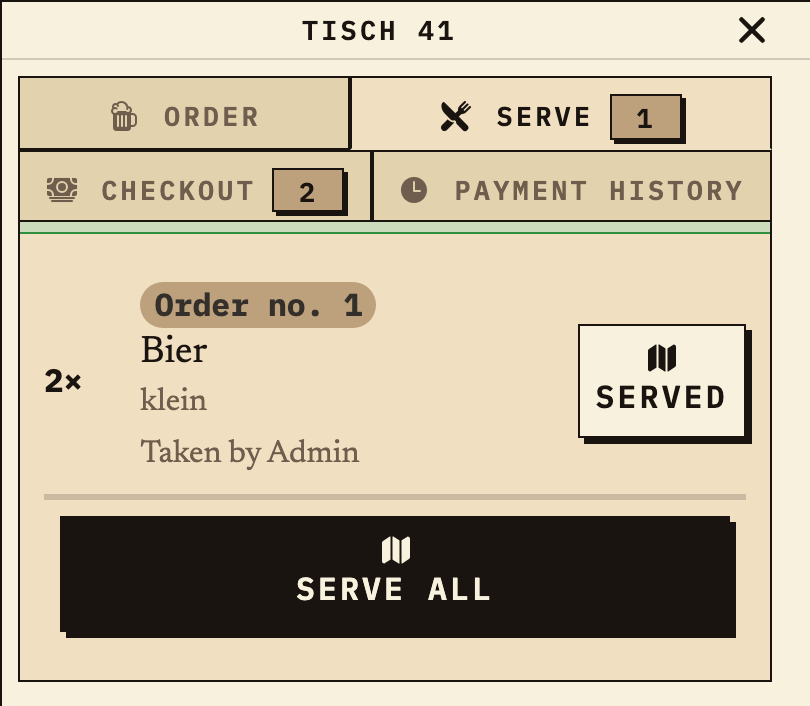
After “Mark ready”, preparation at the bar is complete. The same order appears at the table under “Serve”. Only there does service confirm collection; “Checkout” is another separate step. The station status alone does not say whether the guests already have their drinks.
Work material
For each product group, agree who handles it and where it is handed out. Also name the person who receives questions.
Station assignment controls where order items appear. It does not replace role agreements or payment handling.
| Step or entry | Assigned products / group | Station | Responsible role | Collection point | Questions go to |
|---|---|---|---|---|---|
Scroll horizontally to see the full table.
Entries are not saved. Print the completed plan before reloading or record it separately.
Benefits at a glance
At a club festival, a new shift arrives while one drink order is still In progress and another item has been marked Ready. The outgoing person shows the new shift the open items on the monitor, names the order in progress and hands open questions to the bar lead. Both review the status together. There is no automatic takeover of open tasks. Ready means the station has finished preparation; service confirms collection and checkout separately. This scenario is fictional.
Frequently asked questions
Everything about setup, usage and costs.
Ready?
Open the public demo to explore order taking, the kitchen and the bar. No account is needed. To prepare your own setup, start a test event afterwards.
Start without an account. Register to save. Your own demo events allow up to 20 test orders.
See pricing