Ordered quantity is not stock.
A digital order does not tell you how much of an item remains in inventory or was served.
 BierblockDELogin
Bierblock adds up the drink orders recorded during your event. See which products were ordered without counting individual paper slips. Use the worksheet to compare those figures with your stock count and purchasing notes: orders alone do not tell you how much was served or remains in storage.
Work material
Count stock in consistent units and record wastage and staff consumption separately. Recorded orders are another data point, not an automatic consumption figure.
Fictional example, all values in individual 0.5 l bottles: 60 opening stock + 24 restocked - 18 closing stock - 5 separately recorded losses/staff use = 61 bottles of stock movement. Recorded order quantity is 52 bottles; the difference of 9 is a question for pack sizes, returns and workflow, not proof of missing stock or misconduct.
| Step or entry | Unit | Opening stock | Restocked | Closing stock | Recorded order quantity | Wastage / staff use separately | Difference to investigate |
|---|---|---|---|---|---|---|---|
Scroll horizontally to see the full table.
Entries are not saved. Print the completed sheet before reloading or record the figures separately.
The Problem
Order data is one source for a review; it does not show stock, wastage or what was actually consumed.
A digital order does not tell you how much of an item remains in inventory or was served.
Order reporting does not alert you to a minimum stock level. The team counts stock and decides when to reorder.
Order quantities are only part of the picture. Add payment records, stock movements and remaining inventory separately.
The Solution
Review recorded drink orders by product and time, then compare those quantities with stock counts, separately recorded waste and your team’s observations.
Review recorded quantities by product without adding up individual order slips.
Use the timeline to see when orders were taken, then compare it with what your team observed.
Recorded order quantities do not show stock on hand, what was consumed, waiting time or profit. Compare them with stock counts, receipts and your team’s observations.
Export selected report sections as PDF or raw order data as CSV, then record one change to check at the next event.
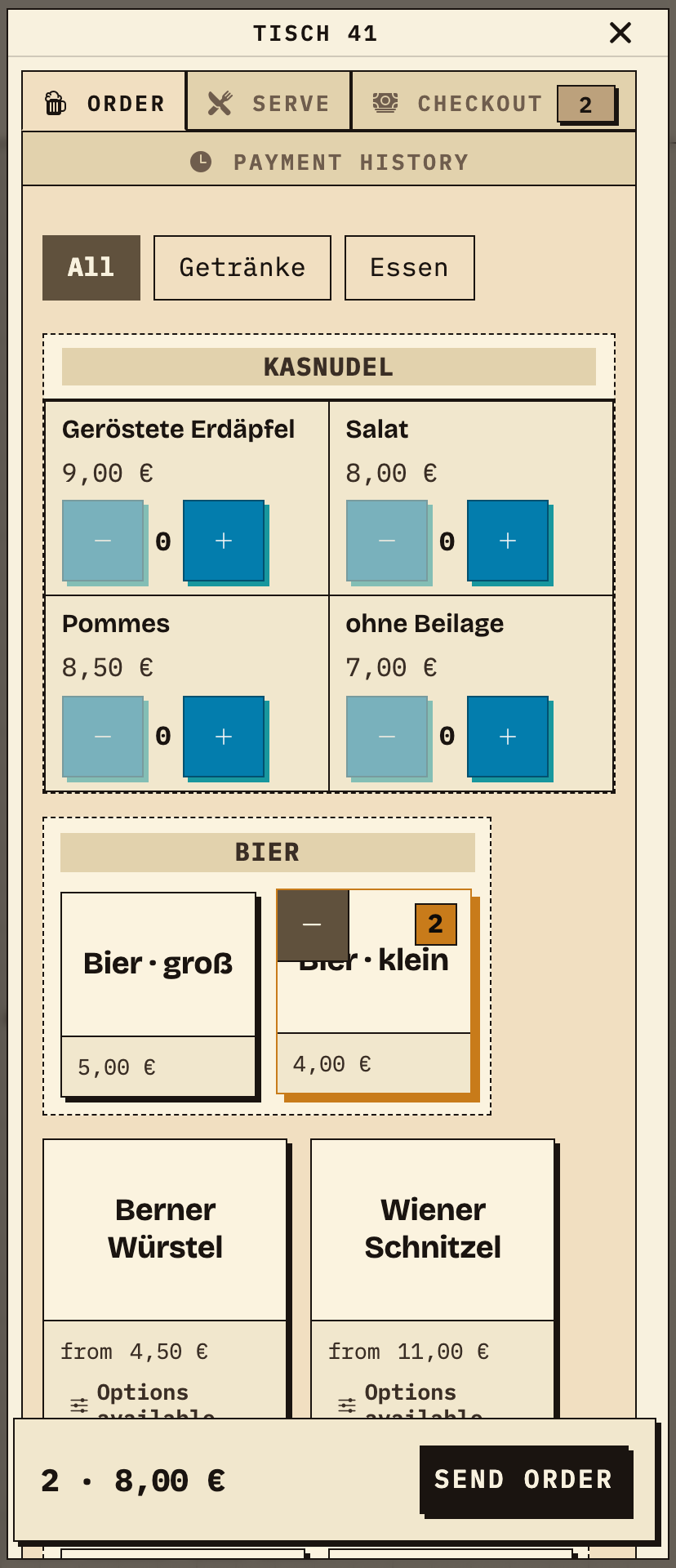
Table 41 orders two small beers. Service taps the drinks on the phone; they belong to the Kellnertheke station (waiter bar), not the grill.
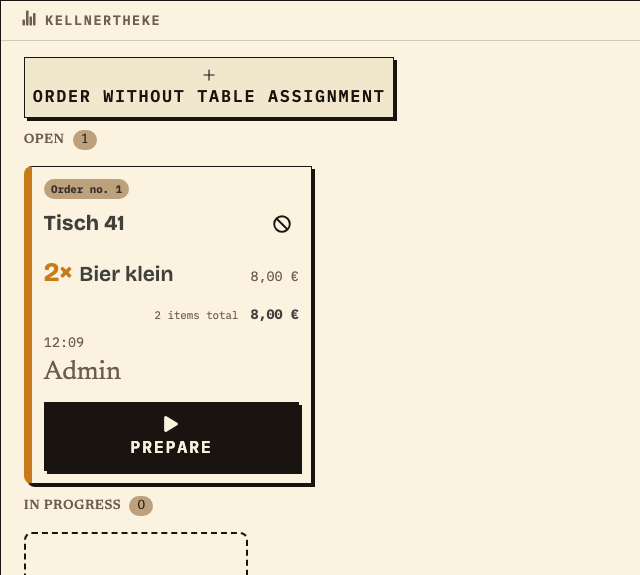
Drinks arrive on the Kellnertheke station monitor (waiter bar) – separate from the dishes at the grill station. The card shows table, items and total; “Prepare” starts the bar.
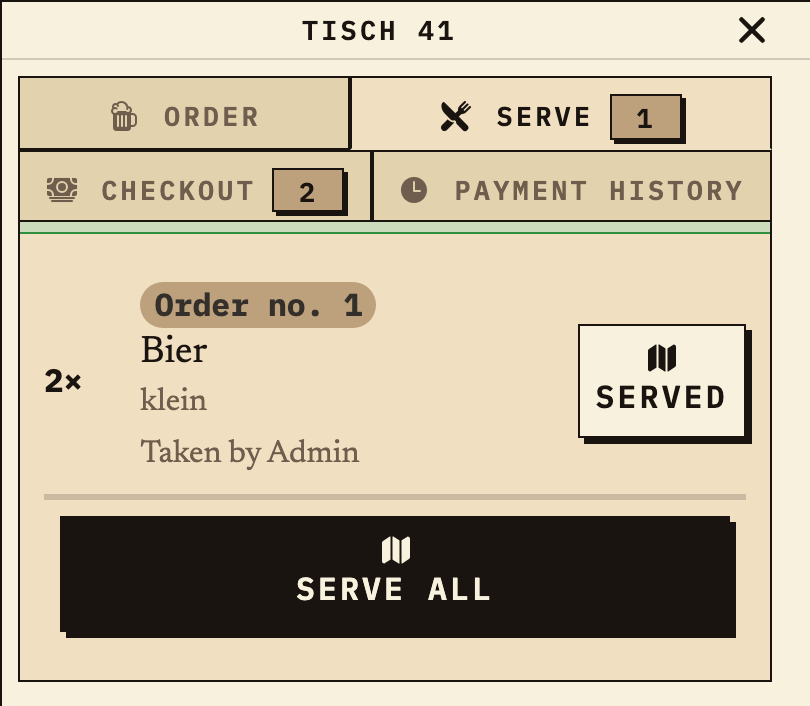
Ready drinks appear at the table on the “Serve” tab. Here both beers are marked ready and can be served.
Benefits at a glance
After an event, a team compares recorded beer orders with its stock count and payment records before adjusting its purchase plan. Order quantities alone do not measure consumption or prove how much to buy.
Frequently asked questions
Everything about setup, usage and costs.
Ready?
Open the public demo to explore order taking, the kitchen and the bar. No account is needed. To prepare your own setup, start a test event afterwards.
Start without an account. Register to save. Your own demo events allow up to 20 test orders.
See pricing