From floor plan to table report

Table management: create tables, assign orders, follow each round

A table is created on the floor plan, named, and selected in service mode. Every order therefore carries the right table reference; follow-up rounds stay visible at the same table. Direct sales deliberately run without a table assignment. At the end, the table report shows the quantities and values recorded at a table.

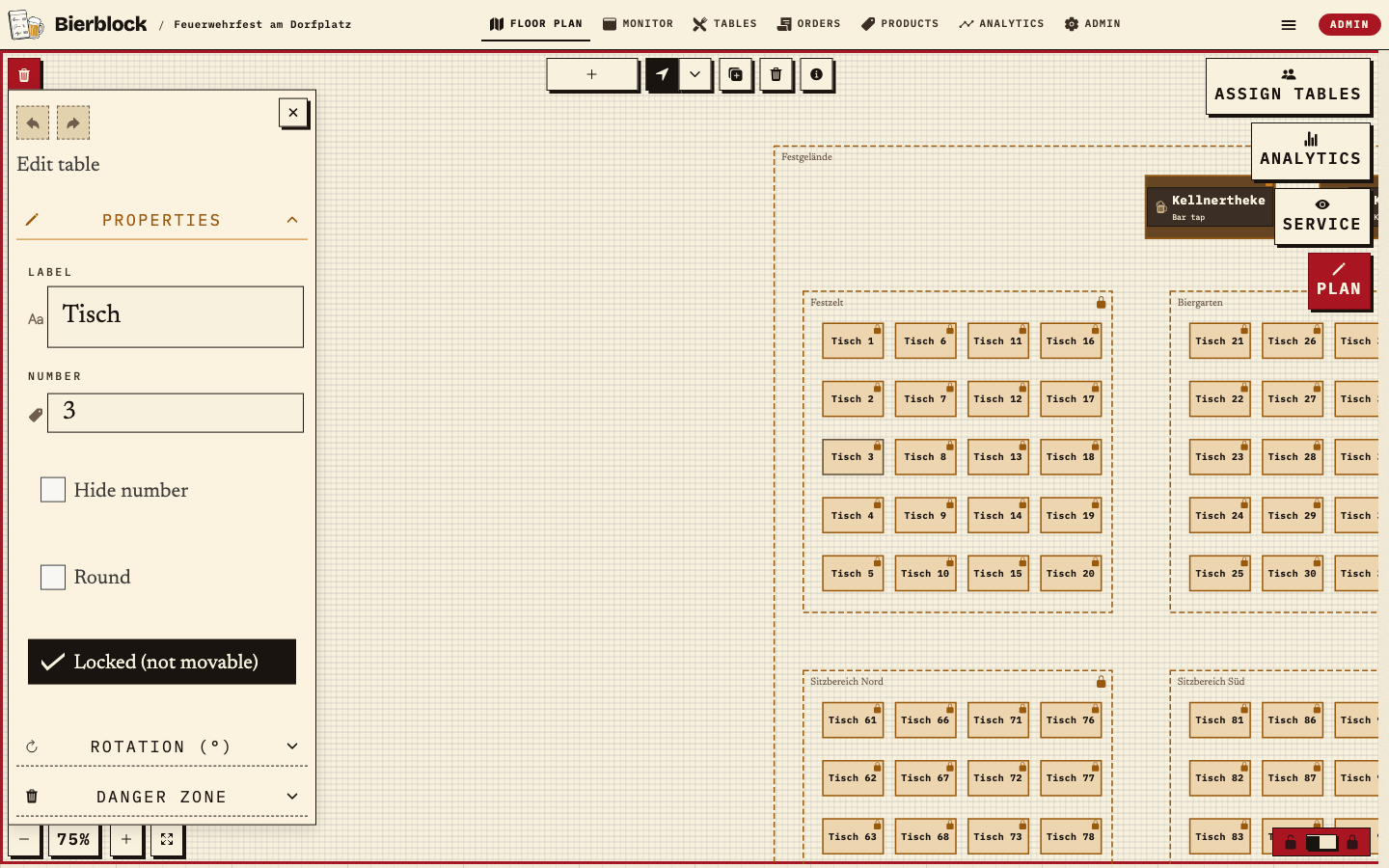
Bierblock floor plan in plan mode with table 3 selected, the Edit table panel open and the Service and Plan mode switches
Plan mode: table 3 is selected; its name and number are shown in the panel.

The Problem

Why table management fails without a clear plan

Table service needs a unique reference and a clear separation from direct sales. Without both, orders end up in the wrong place.

A table without a unique name

Table 3, Table 03 or "front left" cause confusion. The name and number must match on the floor plan and in service.

Direct sales get mixed up with table service

There is no table at the counter. If you mix both, you look for orders in the wrong place.

Follow-up rounds lose their context

Without a table reference, you cannot tell which round belongs to which table. The table report totals all recorded orders for the table.

The Solution

Keep every order at the right table

Create and name tables once on the floor plan. In service mode, waiters choose the table before ordering; direct sales keep no table assignment.

Create and name tables on the floor plan

Name and number are maintained in plan mode. Helpers see the same reference in service.

Choose the table in service mode

Select the table before ordering or open it through the table link. The order sheet shows the table in its header.

Order more rounds at the same table

After sending, the order stays at the table; a further round is booked to the same table again.

Use the table report as a review

The table report totals recorded orders, units and values; it is not proof of payment or stock issued.

Benefits at a glance

How Bierblock helps your team

  • The table reference stays the same from plan to report
  • Table service and direct sales stay clearly separated
  • Follow-up rounds remain visible as rounds at the table
Fictional example

An example from festival operations

From floor plan to table report

The fictional example follows table 3: create and name it, order in service mode, add two beer rounds and a spritzer round, and read the table report. All visible names are test data.

  1. 01

    Create and name the table

    In plan mode, select the table on the floor plan. The panel shows the name ("Table") and number (3), which produce the reference "Tisch 3" (table 3). "Hide number" and "Round" only change the display. Change names before service so helpers recognise the table.
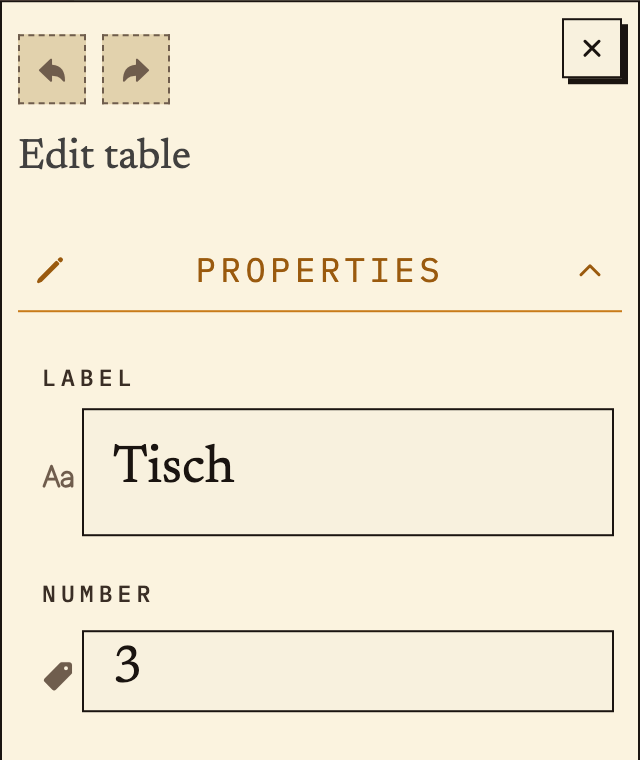
    Edit table panel with name Table and number 3
    Name and number produce the reference Tisch 3.
  2. 02

    Order in service mode

    In service mode, tapping table 3 opens its order sheet. Service selects "Bier · 0,3 l"; the bottom bar shows 1 · €4.50. The table appears in the sheet header, and the order is sent with this table. Direct sales use "Order without table assignment" instead.
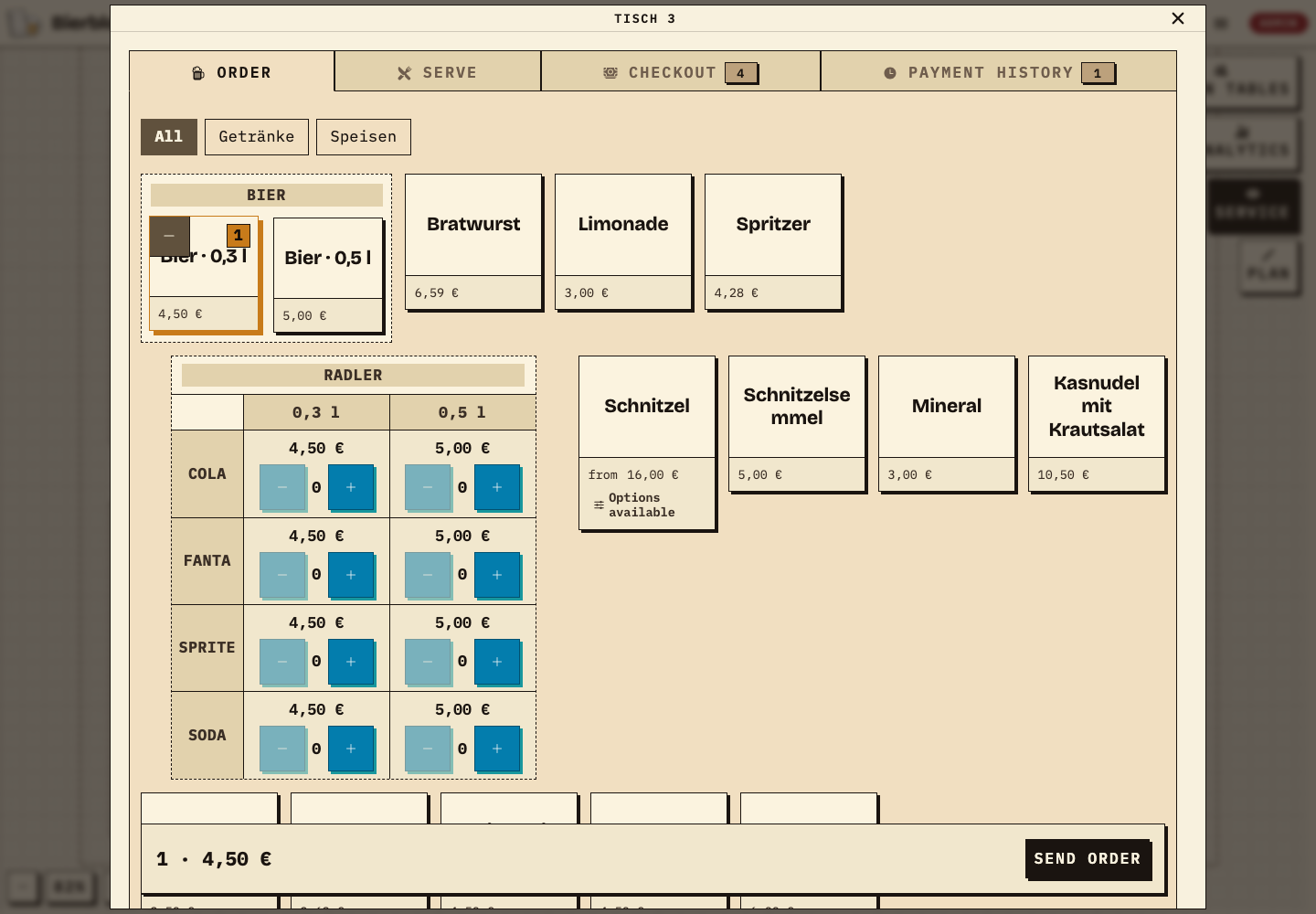
    Order sheet for table 3: Order, Serve, Checkout and Payment history tabs; 0.3 l beer selected, total 1 · €4.50
    Table 3 in service mode: 0.3 l beer selected, order not yet sent.
  3. 03

    Order more rounds at the same table

    After sending, the order stays at the table. For the next rounds, open table 3 again and send more items. In the order list, the rounds appear as separate orders for the same table; the table report totals them.
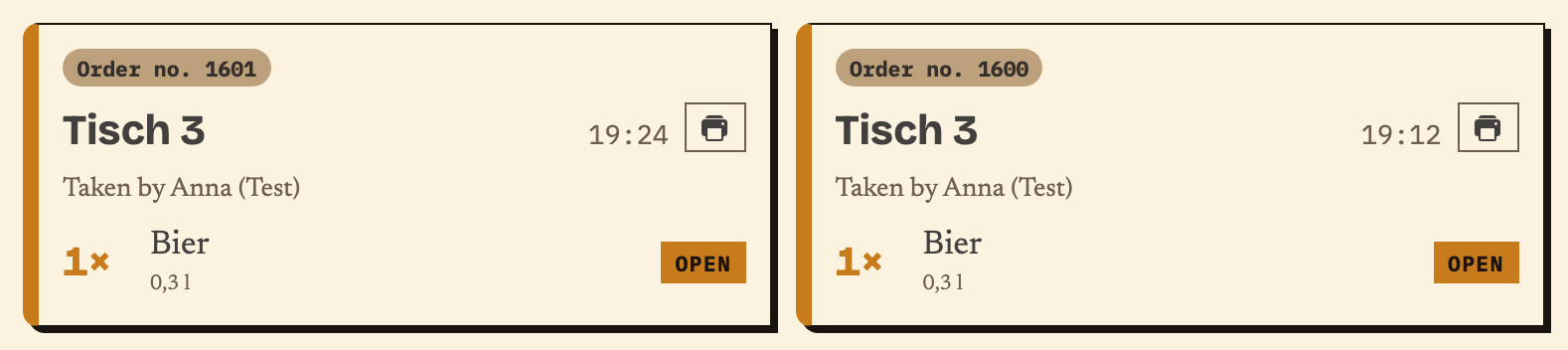
    Two open orders for table 3 in the order list, each 1× 0.3 l beer
    Two rounds for table 3, each 1× 0.3 l beer.
  4. 04

    Table report: quantities and values

    The table report shows recorded units, revenue and orders. In the sample, table 3 has 4 units, €17.56 and 3 orders; the timeline lists the rounds and actions. The figures total recorded orders, not cash taken; payments and stock issued are separate processes.
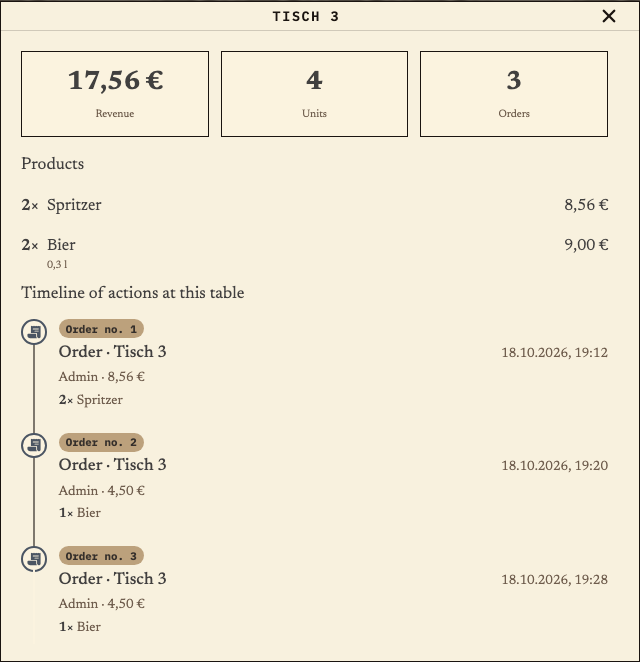
    Table report for table 3: €17.56 revenue, 4 units, 3 orders, products and timeline
    Table report for table 3: recorded quantities and values, including the spritzer round and both beer rounds.

The screenshots come from "Feuerwehrfest am Dorfplatz", a fictional sample festival in the real app. Table 3, the spritzer round and the two beer rounds are test data; the timeline shows only these three rounds on the same evening. The table report counts recorded items and values, not cash taken or stock issued. Direct sales remain without a table assignment.

Frequently asked questions

What organisers often ask.

Everything about setup, usage and costs.

How do I create and name a table?
In plan mode on the floor plan, create a table and maintain its name and number. The resulting reference, "Tisch 3" (table 3) in the sample, is what helpers see in service. Check it with a test order before the festival.
Can I rename tables during the festival?
Authorised people can edit the floor plan. Rename tables before service so waiters recognise the table on the plan and in the order sheet. An existing order keeps its table assignment; the display uses the current table reference.
Can I take an order without a table?
Yes, through direct sale or "Order without table assignment". That order has no table assignment and does not appear as a table order. For table service, the waiter selects the table before submitting.
Can I assign a submitted order to a different table?
There is no table switch on a submitted order; its table assignment stays. Whether and how you can correct an item depends on the helper role and its status. If in doubt, the responsible person cancels it and creates the order again at the right table.
Where can I see quantities and values per table?
The table report shows recorded units, revenue and orders for one table; the room report groups tables by room. These figures prove neither payment nor stock issued; they represent recorded orders.
What is the difference between a table and a room?
Tables are the ordering points in service. Rooms group tables on the floor plan and in the room report. Room assignment does not change the table reference.
How many tables can I create?
Paid plans do not set a separate table quota. That does not guarantee unlimited technical capacity; test your planned devices, connection and workflow at the venue.

Ready?

See how your team could take orders.

Open the public demo to explore order taking, the kitchen and the bar. No account is needed. To prepare your own setup, start a test event afterwards.

Open the demo — no sign-upBuild your own test event

Start without an account. Register to save. Your own demo events allow up to 20 test orders.

See pricing