Keep table service distinct from direct sales

Digital waiter pads: Take the next round at the table

Choose the table, add food and drinks, check the quantities: this is how your team records a round with Bierblock. A later reorder at the same table is a separate order; the first round stays unchanged. Kitchen and bar see their items on screen, and service confirms serving and checkout separately. Counter sales use their own flow without a table.

The Problem

Why several rounds at the same table get confusing

A first round is taken quickly. A later round at the same table must still remain recognisable as its own order.

Rounds get mixed up.

Without a clear assignment it is unclear which items belong to the first round and which to the reorder.

Table and station lose the connection.

A paper slip does not reliably keep table, round and processing status together.

Corrections after submission.

A submitted item cannot be silently overwritten. The team needs a clear, traceable way to report and correct an error.

The Solution

How each round stays with the right table

Service selects table 41, takes the round and sends it to the assigned station. A later reorder is a new order at the same table; the first round stays unchanged. Service sees the processing status and confirms serving and checkout separately.

Choose the table

For table service, select the physical table. Direct sales run without a table assignment.

Send the round

Check table, items and quantities, then send. The station sees the order with table and order number.

Take a reorder separately

A reorder at the same table becomes a new order; the first round is not changed afterwards.

Serve and check out

Service confirms collection; checkout is documented in its own tab.

01

Take the first round at table 41

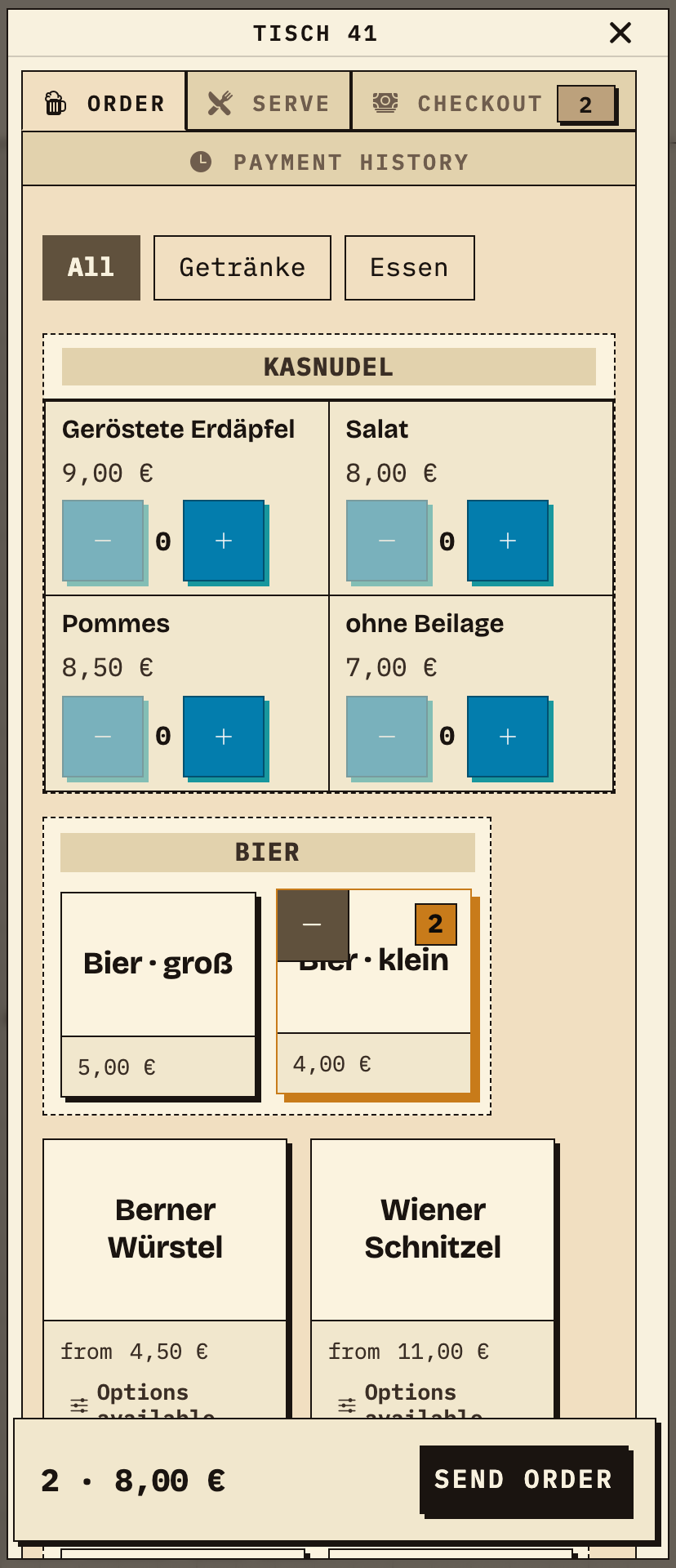
Service opens the configured access, selects table 41 and taps 2× Bier klein. The item count and total appear at the bottom. “Send order” passes the round to the assigned station; before sending, the station cannot see it.
Observation
Table 41, “Order” tab: 2× Bier klein, total “2 · 8,00 €”, button “Send order”.
Next check
“Send order” transmits the round to the Kellnertheke.
Table sheet on the phone: table 41 with 2× Bier klein, total 2 items €8.00 and a Send order button
Table 41, first round: 2× Bier klein, total €8.00, before sending (test data from the demo festival).
02

Open preparation at the Kellnertheke

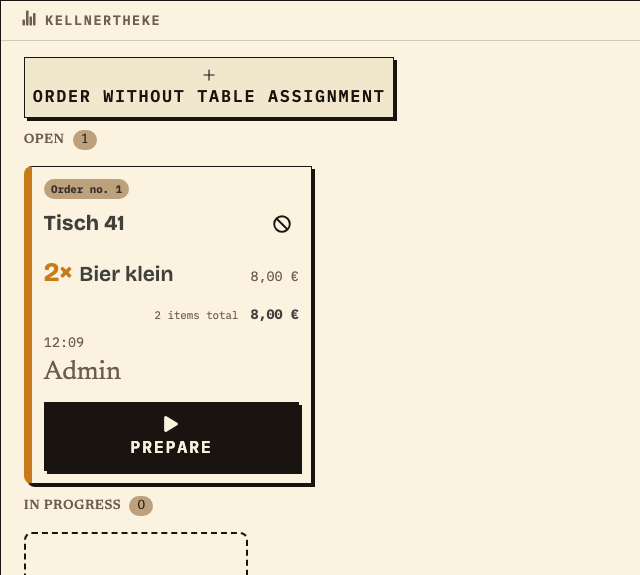
The station sees the round with table and order number in the Open column. It works only the items assigned to it; drinks from other stations do not appear. “Prepare” moves the item to In progress, “Mark ready” finishes preparation.
Observation
Kellnertheke station: Open 1, In progress 0. Order no. 1, table 41, 2× Bier klein, €8.00.
Next check
After “Mark ready”, the item appears at the table under “Serve”.
Kellnertheke station monitor: open order no. 1 for table 41 with 2× Bier klein, €8.00 and a Prepare button
Kellnertheke: the same round for table 41, status Open (test data from the demo festival).
03

Serve and check out at the table

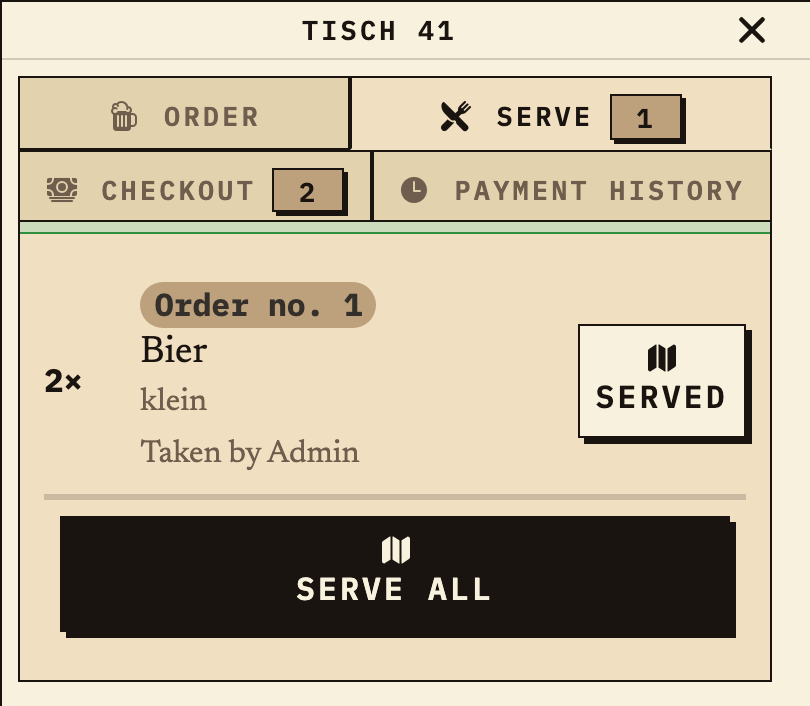
The finished round appears at the table under “Serve”. Service confirms collection there. “Checkout” is its own tab; the station status alone does not say whether the drinks have reached the guest or been paid for.
Observation
Table 41, “Serve” tab: order no. 1, 2× Bier klein, buttons “Served”/“Serve all”. The “Checkout” tab is separate.
Next check
Service marks the drinks as served; payment is documented separately under “Checkout”.
Table 41 on the phone in the Serve tab: order no. 1 with 2× Bier klein, Served and Serve all buttons, separate Checkout tab
The same round at the table: 2× Bier klein, marked ready under “Serve” (test data from the demo festival).

Benefits at a glance

How Bierblock helps your team

  • Keep each round with the right table
  • Keep reorders as separate orders
  • See open preparation, serving and checkout separately
  • Distinguish table service from direct sales
Fictional example

An example from festival operations

Fictional example: A second round at the same table

Table 41 first orders 2× Bier klein (order no. 1). Later, service opens the same table again and takes a second round. The new round becomes a separate order with its own order number; the first round is not merged automatically or changed afterwards. The station sees both orders separately and works them according to their status. Service checks table, items and quantity before sending. This example is fictional.

Frequently asked questions

What organisers often ask.

Everything about setup, usage and costs.

How does a reorder relate to the first round?
A reorder at the same table is taken as a new order with its own order number. The first round is not merged automatically or changed afterwards. Service sees both orders at the table, and the station works them separately.
How does a helper get access, and how is it different from a guest QR?
The organiser configures helper access and shares the matching event link or helper QR. Depending on the setup, helpers sign in with a label and PIN; co-organisers use their own account. A public guest QR is a different access and not a helper access.
Can I see which helper entered an order?
The monitor can show the label and role for the access used. If helpers share a PIN, this identifies the shared access, not the individual person. Use separate helper PINs if you need to tell orders apart by access.
What happens if the waiter’s phone battery dies?
Orders already transmitted are stored on the server and appear after signing in on another device. An order not yet transmitted can only sit in the original device’s outbox; switching devices does not restore it automatically.
How can a submitted order item be cancelled?
A submitted item is not edited in place. A waiter PIN always needs a second helper PIN and a cancellation reason; a station PIN may cancel its own order without a second approval. Other cases can require an admin approver. Collected items are locked from cancellation.
What happens when the connection drops?
The kitchen, bar and helpers need a connection to share new orders. During a short interruption, an order may wait on the device where it was entered and be sent later. Other devices cannot see it until then. Check the waiting order on the original device before entering it again, and agree on a fallback for longer outages.

Ready?

See how your team could take orders.

Open the public demo to explore order taking, the kitchen and the bar. No account is needed. To prepare your own setup, start a test event afterwards.

Open the demo — no sign-upBuild your own test event

Start without an account. Register to save. Your own demo events allow up to 20 test orders.

See pricing