Apps require download and login.
Many systems require installation. For 30 volunteers that costs valuable preparation time.
 BierblockDELogin
Helpers open their configured access in a browser and take food and drink orders on their phones. In table service they select the table first; counter sales run without a table. Product, option and quantity stay visible in the summary before sending, then the order goes to the assigned kitchen or bar. No app download is required. The device check for the actual venue follows below.
The Problem
Waiters keep moving. Without a shared overview, every order stays on the device where it was entered.
Many systems require installation. For 30 volunteers that costs valuable preparation time.
A waiter in the middle of the tent needs order taking where the guest is, not only at the counter.
Someone who helps for one day does not want to install an app and create an account.
The Solution
Take food, drinks and quantities on a phone at the table or counter. For table service, select the table first; counter sales use no table.
Helpers open the configured access on their phone; the devices need a connection.
Table service starts with the physical table; a counter sale runs without a table. Product, option and quantity can be adjusted before sending.
The summary shows the number of items and the total. Only “Send order” passes the items to the assigned stations.
Kitchen and bar see their own items as tickets in the Open, In progress and Ready columns.
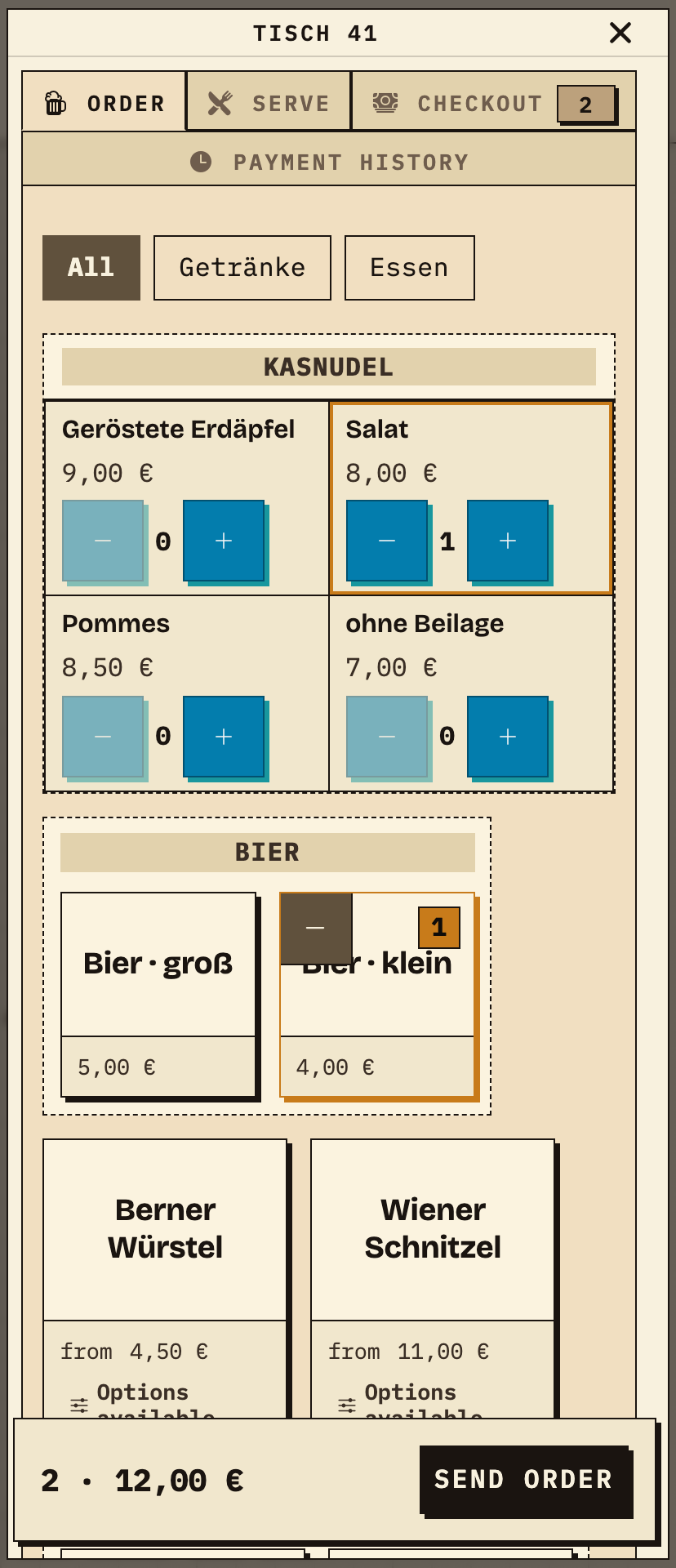
The helper opens the configured access in the phone browser. In table service she selects table 41 on the floor plan and opens the “Order” tab. She taps “Bier · klein” and chooses the “Salat” side for the Kasnudel. The quantity sits on the tile; the item count and total at the bottom show the state before sending.
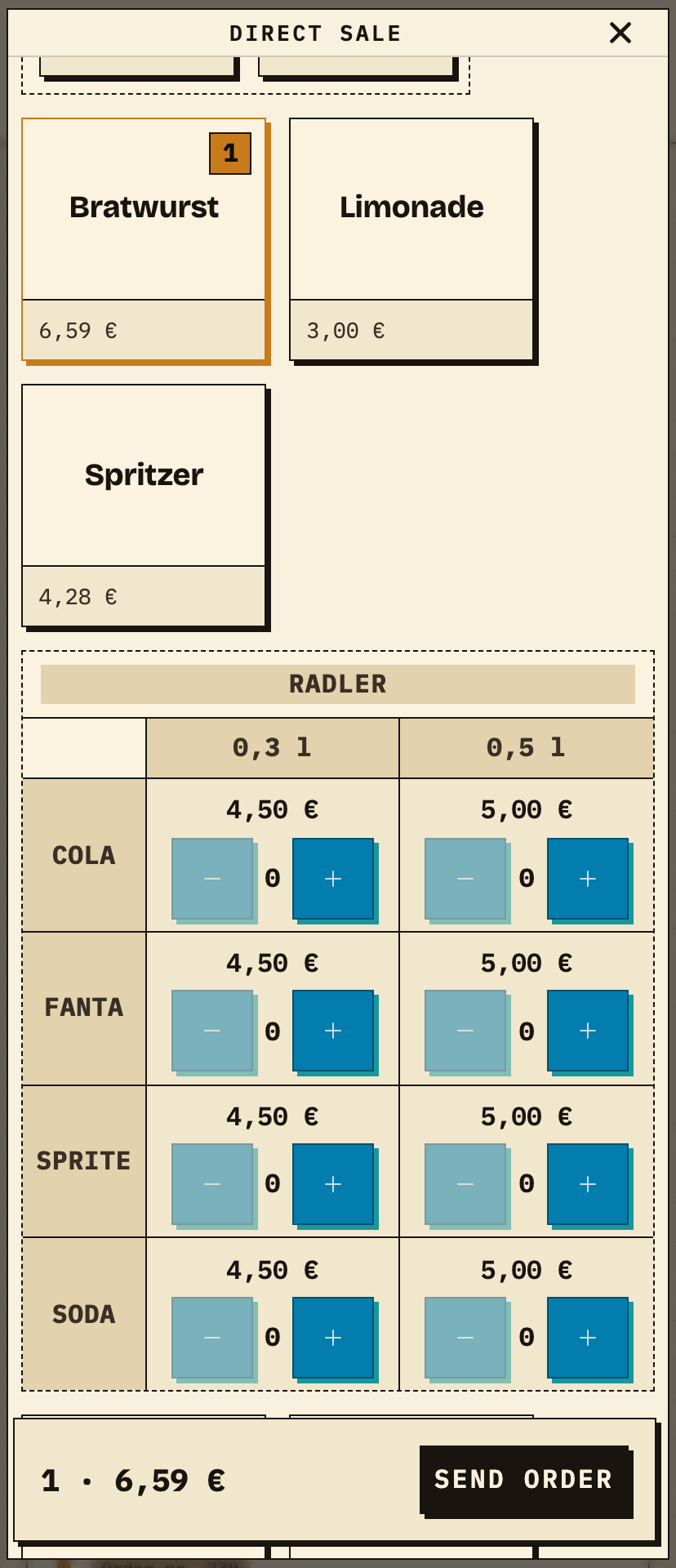
At the counter or a standing table, the table assignment is omitted. The helper opens direct sale, taps “Bratwurst” and chooses size and flavour for a Radler. The tile shows quantity and price; the total sits at the bottom. Here too, only “Send order” makes the selection visible to the station.
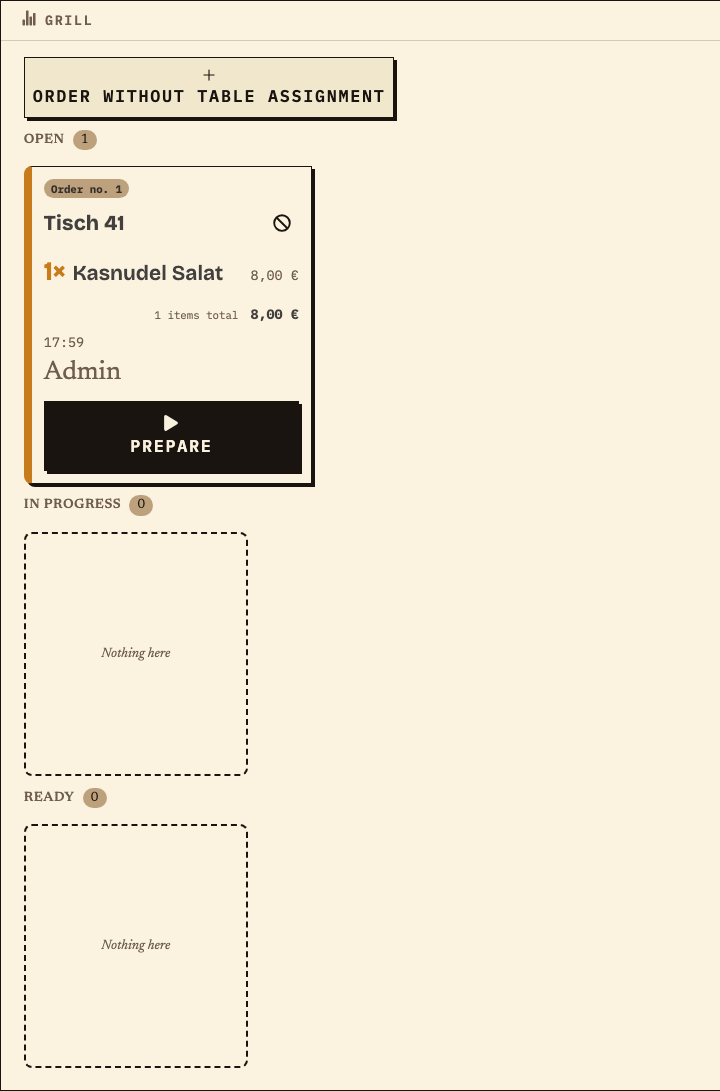
After sending, the food from step 1 appears at the Grill as its own ticket. It carries the same order number and table, but only the kitchen item. The bar team sees the drink part at the Kellnertheke.
Work material
Run these steps for each planned order-taking device and station. Record the result and owner; a test passes only when the expected station can see the order.
If the connection drops, an order remains on the device that took it until it is sent. Other devices see it only after a successful transfer. Check the outbox on that device after reconnecting; switching devices does not restore it automatically.
| Step or entry | Device, role and location | Result / failure case | Owner |
|---|---|---|---|
Scroll horizontally to see the full table.
Entries are not saved. Print the completed sheet before reloading or record the results separately.
Benefits at a glance
The team opens helper access on its planned phones, submits a complete test order for a table and station, and checks that each assigned serving point sees its items. An order still waiting locally is not visible to other devices.
Frequently asked questions
Everything about setup, usage and costs.
Ready?
Open the public demo to explore order taking, the kitchen and the bar. No account is needed. To prepare your own setup, start a test event afterwards.
Start without an account. Register to save. Your own demo events allow up to 20 test orders.
See pricing